How to Update Your Domain Contact Details (WHOIS Information) in the QuickServers Portal
Keeping your domain contact details up to date is essential for security, ownership verification, and staying compliant with domain registration rules. If your email address, phone number, or physical address changes and your WHOIS information isn’t updated, you might miss important renewal notices or ownership verification emails. In some cases, outdated contact data can even cause issues when transferring or recovering a domain.
With QuickServers, you can review and update your domain contact details directly from your customer portal. This step-by-step guide explains what WHOIS information is, how to change it safely, and best practices to keep your domain ownership secure and compliant.
1. What Is WHOIS Information and Why It Matters
WHOIS information is the set of contact details associated with your domain name. It typically includes:
-
Registrant name and organization
-
Email address
-
Phone number
-
Physical address
-
Administrative and technical contact information
Accurate WHOIS details matter because they:
-
Prove domain ownership when disputes or transfers arise
-
Ensure you receive renewal and important system notifications
-
Help domain providers comply with ICANN and registry policies
-
Support security checks and fraud prevention
Even if you use domain privacy protection to hide public WHOIS data, your underlying contact details in the QuickServers system should always be accurate.
2. Log In to the QuickServers Customer Portal
To begin updating your domain contact details:
-
Go to the QuickServers website.
-
Log in using your customer portal credentials.
-
After logging in, you will see sections for Domains, Services, Billing, and Support.
All of your domain management tools, including WHOIS contact updates, are available through the Domains section.


3. Go to “My Domains” and Choose the Domain
From your main dashboard:
-
Click on Domains in the menu.
-
Locate the domain whose contact details you want to update.
-
Click on the domain name or the Manage button next to it to open the domain management screen.


This page is your control center for DNS, nameservers, renewals, and contact information.
4. Open the Domain Contact Details / WHOIS Section
On the domain management page, look for an option:
-
Contact Information
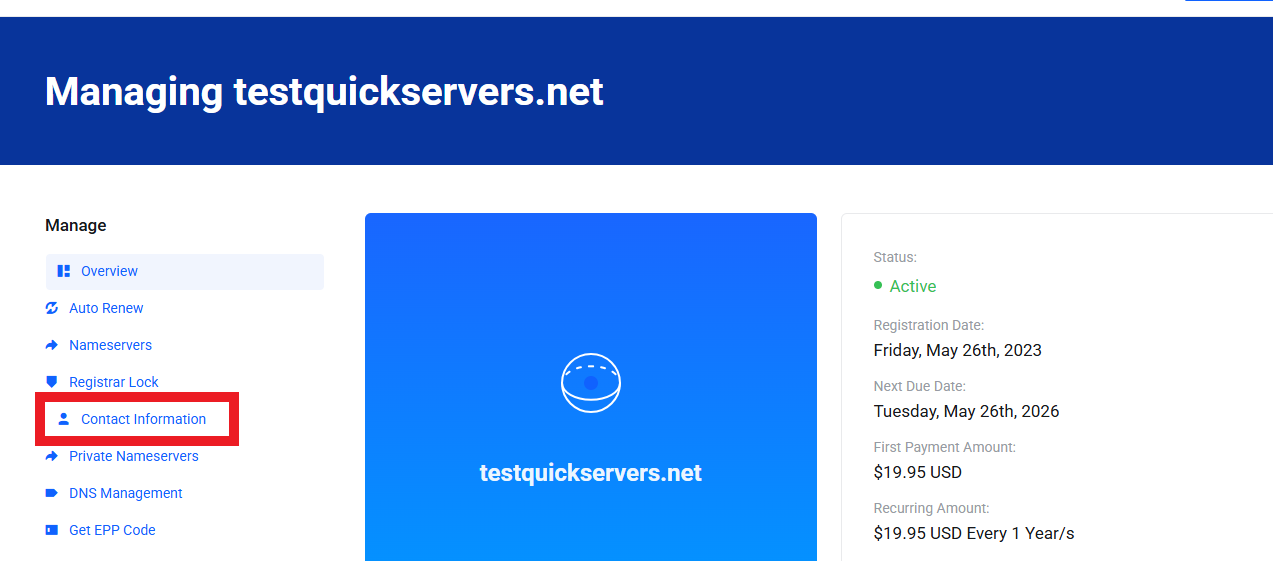
Click this option to open the form where your current registrant, administrative, billing, and technical contact details are stored.
You will now see the information that is currently on file for your domain.
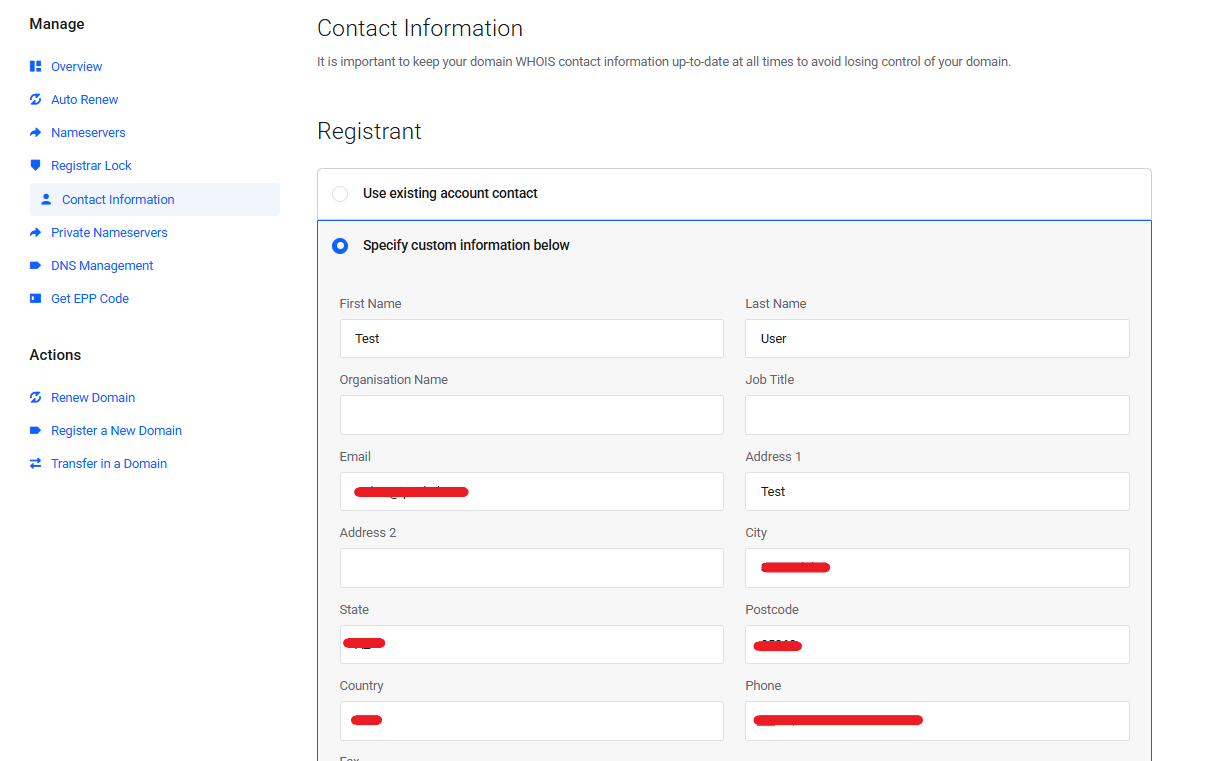
5. Review Existing Contact Details Carefully
Before making changes, quickly review the existing data to see what needs updating:
-
Is your name spelled correctly?
-
Is your organization still accurate (if applicable)?
-
Is the email address still active and monitored?
-
Is your phone number current?
-
Is your physical address up to date?
This review helps you avoid unnecessary edits and ensures only outdated or incorrect items are changed.
6. Update Registrant, Admin, Billing, and Technical Contacts
Most domains allow you to manage multiple contact types:
-
Registrant Contact – The legal owner of the domain
-
Administrative Contact – Authorized to approve changes and transfers
-
Billing Contact – Handles payments and renewal-related emails
-
Technical Contact – Manages technical and DNS-related issues
In the contact form:
-
Update each field that needs to be corrected (name, company, email, phone, address).
-
If QuickServers gives you the option to use the same details for all contacts, you can select that to keep everything consistent.
-
If you prefer different information for billing or technical contacts, update those sections individually.
Always make sure the registrant email address is one you actively use, as it may be needed for verification or recovery.
7. Confirm and Save Your WHOIS Changes
Once you’ve updated the necessary fields:
-
Double-check that all information is accurate and free of typos.
-
Click Save, Update Contact Details, or a similar button to apply your changes.
-
Wait for a confirmation message in the portal indicating that your contact information has been updated successfully.
In some cases, you may receive a confirmation email asking you to verify the new contact email address. Be sure to open that email and follow the instructions if required.
8. Verify Your Changes and Check for Confirmation Emails
After saving the updates:
-
Check the contact details section again to confirm that the new information is displayed correctly.
-
Monitor your inbox for any verification emails related to your domain contact change. Some registries require you to confirm changes via email within a limited time window.
-
If you use domain privacy protection, remember that the public WHOIS output may still show masked data, but your underlying contact details in QuickServers should now be updated.
Verifying immediately helps you catch and correct any mistakes before they cause issues.
9. Best Practices for Keeping WHOIS Information Accurate and Secure
To maintain a secure and well-managed domain portfolio, follow these simple best practices:
-
Always use an email address you control long-term, not a temporary or rarely checked inbox.
-
Avoid using personal emails that might change when you switch jobs; a dedicated business email is ideal.
-
Update your contact details any time you move, change phone numbers, or rebrand your business.
-
Combine WHOIS updates with domain privacy protection if you want to keep your personal data private from public lookup tools.
-
Never share your customer portal login with unauthorized people; use secure passwords and, if available, additional security features.
These habits help prevent ownership confusion and make transfers, renewals, and support requests smoother.
10. When to Contact QuickServers Support
If you run into any issues while updating your domain contact details, you may need help from support. Common reasons include:
-
You cannot access the email address currently on file.
-
Your domain shows a lock or verification hold related to contact changes.
-
The portal displays an error when saving your new information.
-
You’re unsure which contact type to change (registrant vs. admin vs. billing).
In those cases, log in to your QuickServers customer portal, open the Support section, and submit a ticket with your domain name and a description of the issue.
The Bottom Line
Keeping your domain contact details (WHOIS information) up to date is a critical part of responsible domain management. Accurate information helps you prove ownership, receive renewal and security notifications, and stay compliant with registration rules.
Through the QuickServers customer portal, you can easily review and update your registrant, administrative, billing, and technical contacts in just a few steps—without needing any technical background. By regularly checking and maintaining your WHOIS details, you protect both your domain and your brand for the long term.